

If you are a fan of retro gaming, you have likely heard of the LCFGameStick. This small but powerful device is a “plug-and-play” console that packs thousands of classic games into a tiny HDMI dongle. It is one of the most affordable ways to play games from the 80s, 90s, and early 2000s on a modern television. However, because these devices are often imported, the manual in the box can be a bit confusing. This article provides the most detailed instructions for LCFGameStick users to ensure you get the best performance and a smooth setup.
The LCFGameStick works by using “emulation,” which is a fancy way of saying it uses software to pretend it is an old PlayStation, Sega, or Nintendo console. While it looks like a simple USB drive, it actually contains a processor, RAM, and a MicroSD card slot that holds the entire history of gaming. In this guide, we will break down every single step so you can stop troubleshooting and start playing.
Step-by-Step Setup Instructions for LCFGameStick
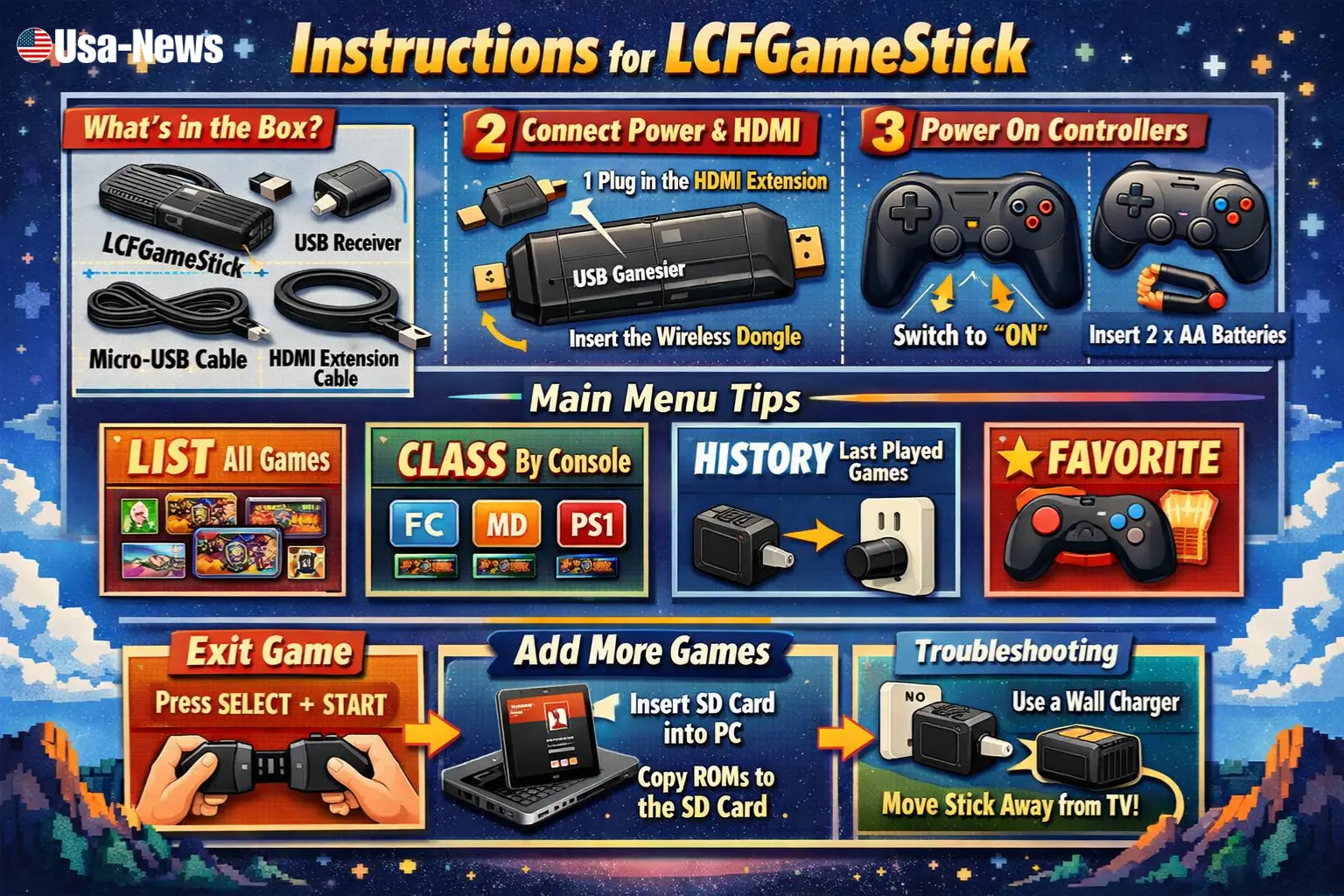
Setting up your new console is the most important part of the process. If you don’t follow the instructions for LCFGameStick hardware correctly, you might experience lagging controllers or a screen that won’t turn on. First, you need to identify all the parts in your box. You should have the GameStick itself, a small USB receiver (which looks like a tiny nub), a Micro-USB power cable, and an HDMI extension cable.
The first physical step is to plug the USB receiver into the back of the GameStick. This receiver is what talks to your wireless controllers. Without it, the controllers will just blink and never connect. Next, plug the Micro-USB cable into the side of the stick. This provides the electricity the device needs to run. Many people try to plug the stick directly into the TV’s HDMI port, but we recommend using the included HDMI extension cable. This helps keep the stick away from the back of the TV, which can sometimes block the wireless signal or cause the device to get too hot.
Once the hardware is connected, plug the other end of the USB power cable into a power source. While you can use the USB port on your TV, those ports often don’t provide enough “juice” for the GameStick to run PlayStation 1 games smoothly. For the best experience, use a standard 5V/1A phone charger brick and plug it directly into a wall outlet. Finally, flip the small switch on the bottom of your controllers to the “ON” position after inserting two AAA batteries into each one.
Navigating the Menu and Interface
When you turn on the device, you will see a main menu that lists all the available games. The instructions for LCFGameStick menu navigation are fairly simple once you understand the tabs. At the top of the screen, you will see categories like “List,” “Class,” “History,” and “Favorite.” The “List” tab shows every game on the SD card in alphabetical order. “Class” organizes games by the console they belong to, such as FC (Nintendo), MD (Sega), or PS1.
If you find a game you love and want to play it often, you can add it to your “Favorite” list. To do this, highlight the game in the list and press the START button on your controller. This saves you from scrolling through thousands of titles every time you turn the system on. If you are looking for a specific title, you can press the SELECT button to open a search bar. A digital keyboard will appear, allowing you to type in the name of the game.
“A common mistake users make is forgetting to check the ‘History’ tab. This section automatically saves the last few games you played, making it the fastest way to jump back into an adventure.” — Tech Support Quote
Essential In-Game Controls and Save States
One of the biggest hurdles for new users is figuring out how to leave a game. Since these are old games, they don’t have a “Home” button like a modern Xbox or PlayStation. To exit any game and return to the main menu, you must press SELECT + START at the same time. This will bring up a hidden “System Menu” where you can choose to quit, restart, or save your progress.
Saving your game on the LCFGameStick is different than it was in the 90s. You don’t have to find a “Save Point” in the game. Instead, you can use something called a Save State. When you press SELECT + START, you can select “Save State” to freeze the game exactly where you are. Later, you can return to that same spot by choosing “Load State.” This is a lifesaver for difficult games that didn’t originally have a save feature.
| Action | Controller Shortcut |
| Exit Game | Press SELECT + START together |
| Save Progress | System Menu -> Save State |
| Load Progress | System Menu -> Load State |
| Add to Favorites | Press START on the Game List |
| Search Games | Press SELECT on the Game List |
How to Add More Games to the SD Card
If the thousands of pre-installed games aren’t enough, you can actually add your own. These instructions for LCFGameStick expansion require a computer and a MicroSD card reader. First, turn off the GameStick and gently pop out the MicroSD card. Insert it into your computer. You will see several folders named after different consoles, such as “GBA,” “FC,” or “PS1.”
To add a game, you simply find a “ROM” file (a digital copy of a game) and drag it into the matching folder. For example, a Super Nintendo game goes into the “SFC” folder. It is very important that you do not delete any files that end in .db or .bin, as these are the “brains” of the stick. Once you have added your games, put the card back into the GameStick and turn it on. The new games should appear at the bottom of the list or in the “Class” section.
Troubleshooting Common Issues
Sometimes things go wrong, but don’t worry—most issues have an easy fix. If your screen stays black when you turn it on, the most likely cause is the power supply. As mentioned earlier in our instructions for LCFGameStick, the USB ports on many TVs are too weak. Try plugging the power cable into a wall outlet using a phone charger. This usually fixes 90% of “no signal” problems.
If your controllers are acting “laggy” or the character moves on its own, it is usually because of wireless interference. Because the GameStick sits behind the TV, the metal and electronics of the television can block the signal. Use the HDMI extension cable to move the stick out from behind the TV. Also, ensure your batteries are fresh; low batteries are the number one cause of controller disconnection.
Expert Tips for Better Performance
To get the most out of your device, there are a few “pro” secrets you should know. First, the MicroSD card that comes in the box is often a very cheap brand. If you find the system crashing often, you might want to copy all the files onto a high-quality SanDisk or Samsung card. This makes the menus load faster and prevents your save files from getting corrupted.
Another tip involves the “Screen Ratio.” Old games were made for square TVs, but modern TVs are wide. In the settings menu, you can often choose between 4:3 (square) and 16:9 (wide). While wide looks bigger, the square 4:3 setting actually makes the games look sharper and less “stretched.”
Quick Fact Check
- Storage: Most sticks come with a 64GB card.
- Game Count: Usually between 10,000 and 20,000 titles.
- Resolution: Output is 1080p or 4K, but the games are “upscaled.”
- Multiplayer: Supports up to 2 players with the included controllers.
Frequently Asked Questions (FAQ)
Can I play PlayStation 2 games on this?
No. The hardware inside the LCFGameStick is designed for older, less powerful systems. It works great for PS1, but it cannot handle the 3D graphics of the PS2 or original Xbox.
Why are some game names in different languages?
Because these devices are sold worldwide, the game list often includes versions from Japan, Europe, and the USA. If a game name looks strange, keep scrolling—the English version is usually nearby.
Do I need an internet connection?
Not at all. The LCFGameStick is completely offline. All the games are stored on the SD card, so you can take it to a cabin or a hotel and play without Wi-Fi.
What should I do if a game freezes?
If a game freezes, simply unplug the USB power cable and plug it back in. This will “reboot” the system. To prevent this, always exit games using the SELECT + START method rather than just pulling the power.
By following these instructions for LCFGameStick, you can turn your living room into a retro arcade in minutes. It is a fantastic way to relive your favorite memories or share the history of gaming with a new generation.
Read Also: 8774127453